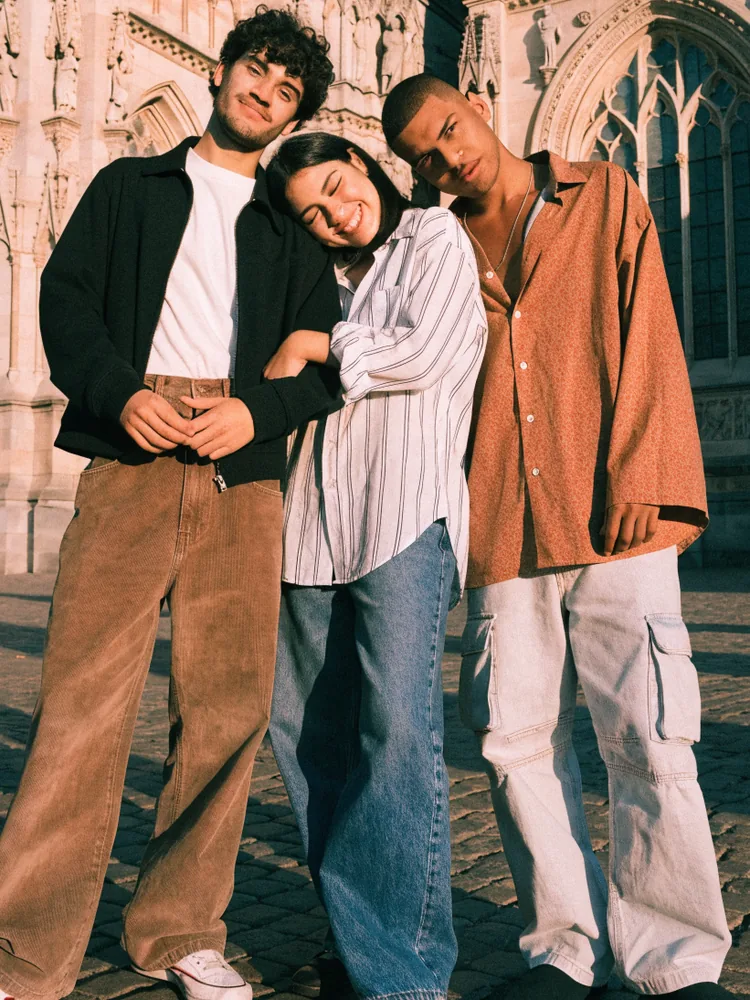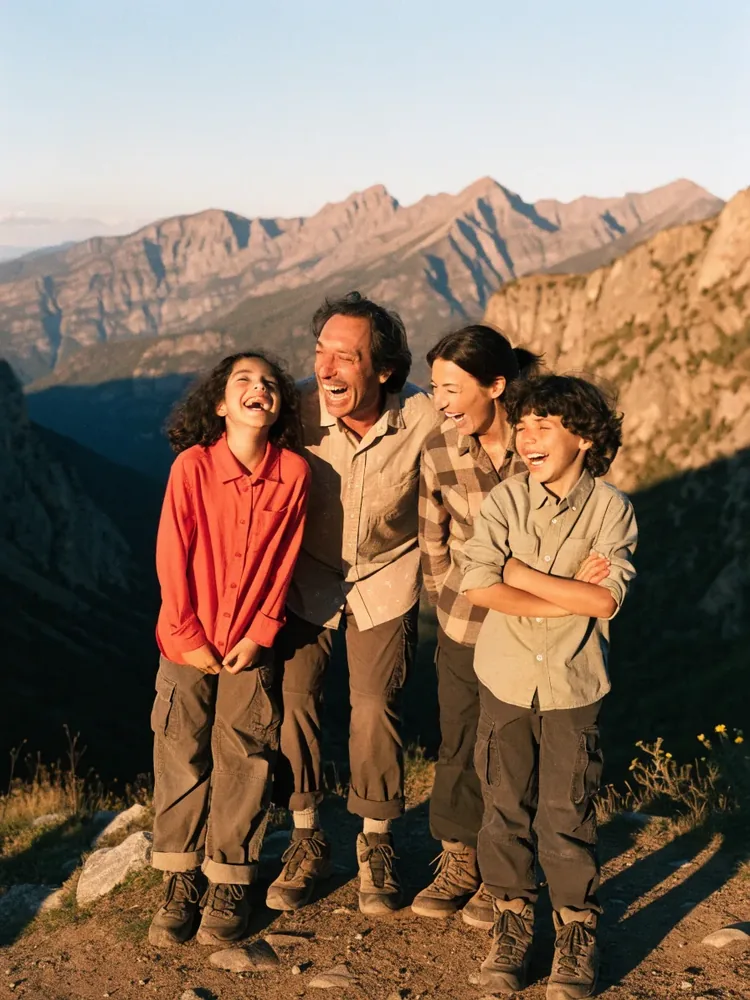
The friend who tilts everything
Sea at 10°? Levelled.
Horizon levelled
The camera you hand over
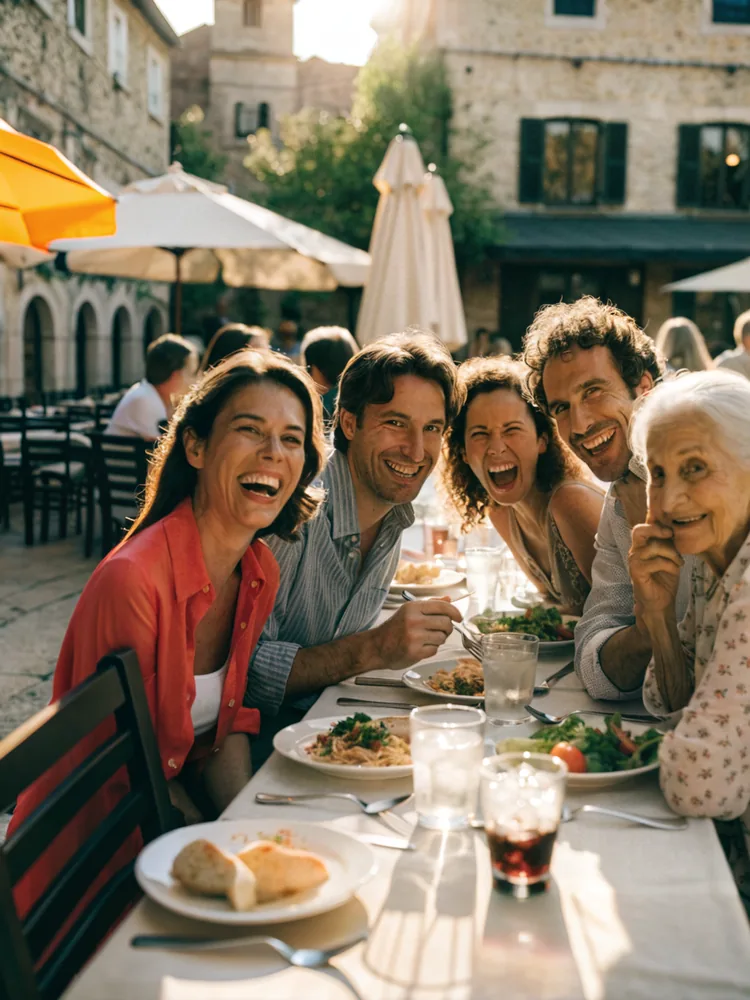
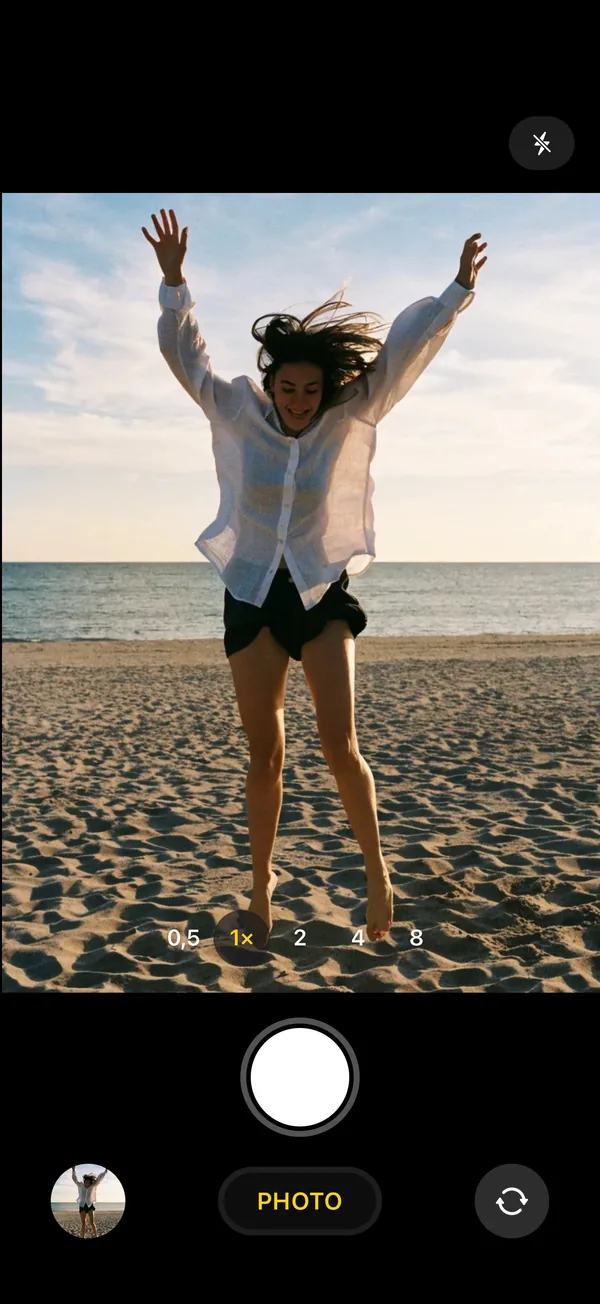
Open Don’t Crop Me before handing over your phone. The screen shows a little less than what the camera records: if they cut off your feet or your head, or tilt the horizon, the app rescues the photo within the margin.
How it works
It looks like the iPhone camera: whoever frames the shot sees nothing different.
The camera records wider than the preview. You keep a margin all around.
It reframes within the margin and saves the photo to Photos, with the original underneath.
What the app rescues
Sea at 10°? Levelled.
Horizon levelledA bit too low? Moved up.
Head clearedAs usual. Put back.
Feet back inThe app only fixes obvious misses, never a deliberate framing.
After the shot
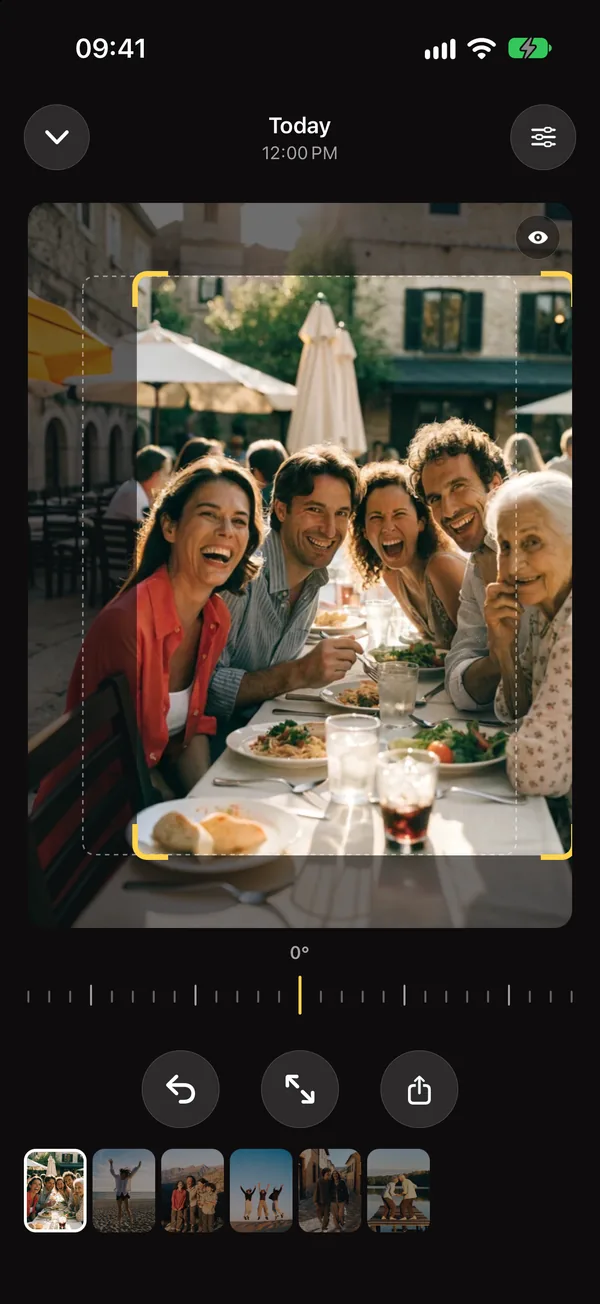
You see the full capture and the frame the app chose. Every change goes straight to Photos.
Nothing is lost
The rescued photo lands in Photos with the original underneath: “Revert to Original” brings back the full capture, just in case.
 In Photos
Revert to Original
In Photos
Revert to Original
With iOS Guided Access, the person you lend your phone to can’t leave the app: not your photos, not your messages.
Reframing is decided on the iPhone, offline. No account, no server, no analytics.
If it saved one of your photos, you can buy the developer a coffee, from the app. It unlocks nothing: it’s a thank-you.
Support
A problem, an idea? Write to me: I answer myself, usually within a few days.
contact@yoanncroizer.fr
Send an emailTo the Photos app on your iPhone, and nowhere else. The rescued photo lands there with the original underneath: “Revert to Original” brings back the full capture.
To save your photos there: add-only access is enough. To change the version of a photo already saved, or to share it in full resolution, it needs to read it back. “Limit Access” is enough then: it only sees its own photos.
Open the photo in the app: drag the frame, make it bigger, level the horizon or keep the full capture. Every change replaces the version saved in Photos. You can also turn off “Rescue automatically” in the app’s Settings.
With iOS Guided Access. Turn it on once in Settings › Accessibility › Guided Access. In Don’t Crop Me, triple-press the side button before lending your phone; triple-press again to take back control.
iPhone, with iOS 18 or later. Not on Android yet.